Top Windows Run Commands
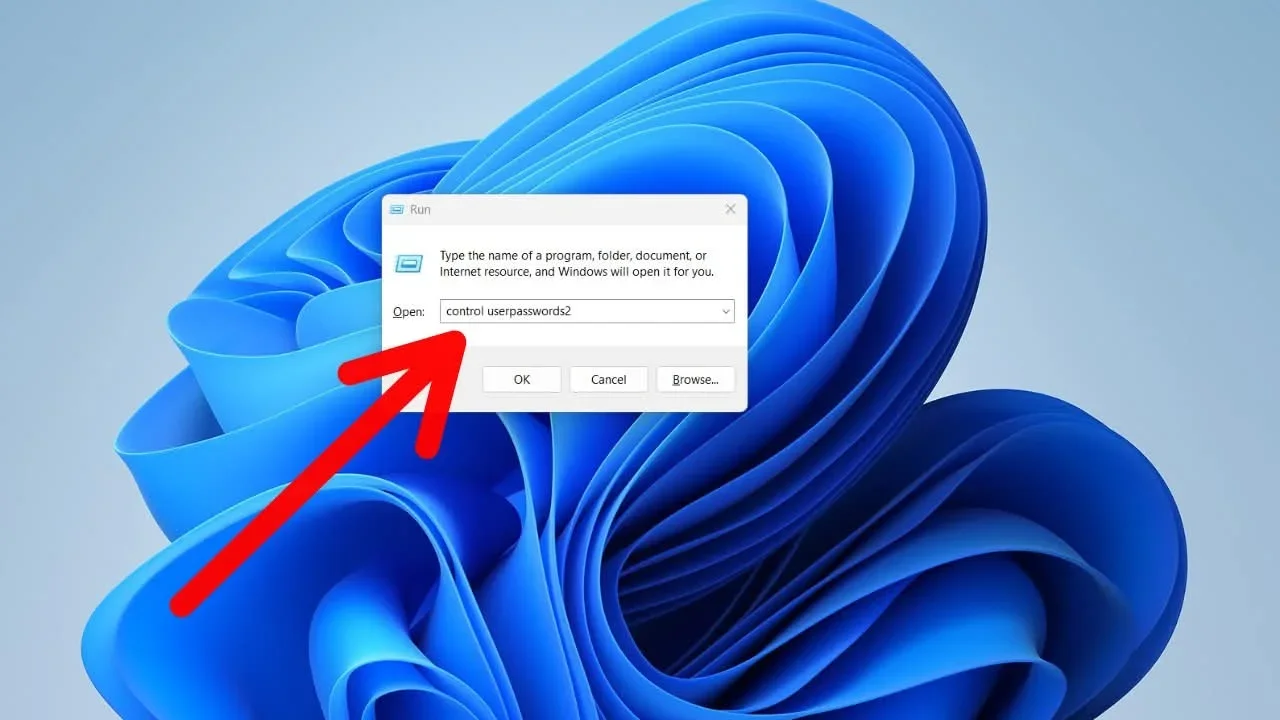
🔥 Top Windows Run Commands You Should Know
Speed up your workflow with these essential commands.
Press Win + R and type:
1. shell:printersfolder – Printers
2. control admintools – Administrative Tools
3. netplwiz – Advanced User Accounts
4. msinfo32 – System Information
5. sdclt – Backup & Restore
6. credwiz – Credential Backup
7. fsquirt – Bluetooth File Transfer
8. calc – Calculator
9. certmgr.msc – Certificates Manager
10. colorcpl – Color Management
11. cmd – Command Prompt
12. compmgmt.msc – Computer Management
13. control – Control Panel
14. shrpubw – Shared Folder Wizard
15. recdisc – Create Repair Disc
16. devmgmt.msc – Device Manager
17. appwiz.cpl – Installed Programs
18. cleanmgr – Disk Cleanup
19. dfrgui – Disk Defragmenter
20. diskmgmt.msc – Disk Management
21. dpiscaling – Display Scaling
22. dccw – Display Color Calibration
23. displayswitch – Display Switch
24. verifier – Driver Verifier
25. microsoft-edge:// – Microsoft Edge
26. eventvwr.msc – Event Viewer
27. control folders – Folder Options
28. sigverif – File Signature Verification
29. joy.cpl – Game Controllers
30. gettingstarted – Getting Started
31. rundll32.exe shell32.dll,Control_RunDLL srchadmin.dll – Indexing Options
32. iexplore – Internet Explorer
33. inetcpl.cpl – Internet Options
34. iscsicpl – iSCSI Initiator
35. control keyboard – Keyboard Properties
36. winver – Windows Version
37. lpksetup – Language Pack Installer
38. gpedit.msc – Group Policy Editor
39. secpol.msc – Local Security Policy
40. lusrmgr.msc – Local Users & Groups
41. magnify – Magnifier
42. mrt – Malicious Software Removal Tool
43. control userpasswords – Current User Account
44. control userpasswords2 – All User Accounts
Save this list — it’s a powerful toolkit for any Windows user.
#everyonehighlights #runcommand #everyone #windows #fblifestyles
Log in to like, dislike, or reply.
Replies 1

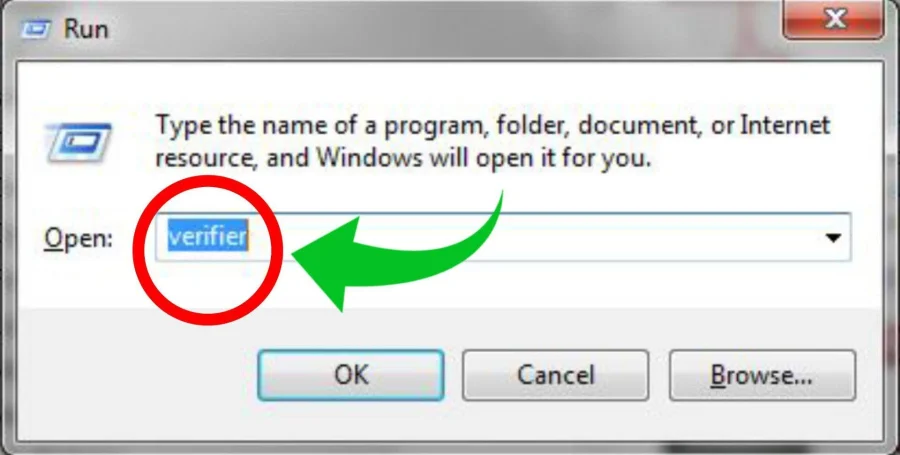
𝙏𝙝𝙚 𝙎𝙚𝙘𝙧𝙚𝙩 𝙏𝙤𝙤𝙡 𝙩𝙤 𝙁𝙞𝙭 𝘽𝙡𝙪𝙚 𝙎𝙘𝙧𝙚𝙚𝙣 𝙀𝙧𝙧𝙤𝙧𝙨! 💻 (𝙫𝙚𝙧𝙞𝙛𝙞𝙚𝙧) Step 1: Press Windows Key + R on your keyboard to open the Run box. Step 2: Type verifier and hit Enter. Step 3: The Driver Verifier Manager window will pop up instantly. Step 4: Select "Create standard settings" to begin setting up a test to find faulty PC drivers causing Blue Screens. Step 5: (WARNING) Do NOT finish the setup unless you are an advanced user! (Pro Tip: To stop it anytime, open Run and type verifier /reset). #WindowsTricks #PCTips #runcommand
11d ago
Log in to leave a comment.